
Secure Shell ("ssh") and "scp" Access
The secure shell (ssh) command can be used to securely connect
to the Math department servers from a terminal (and scp to securely
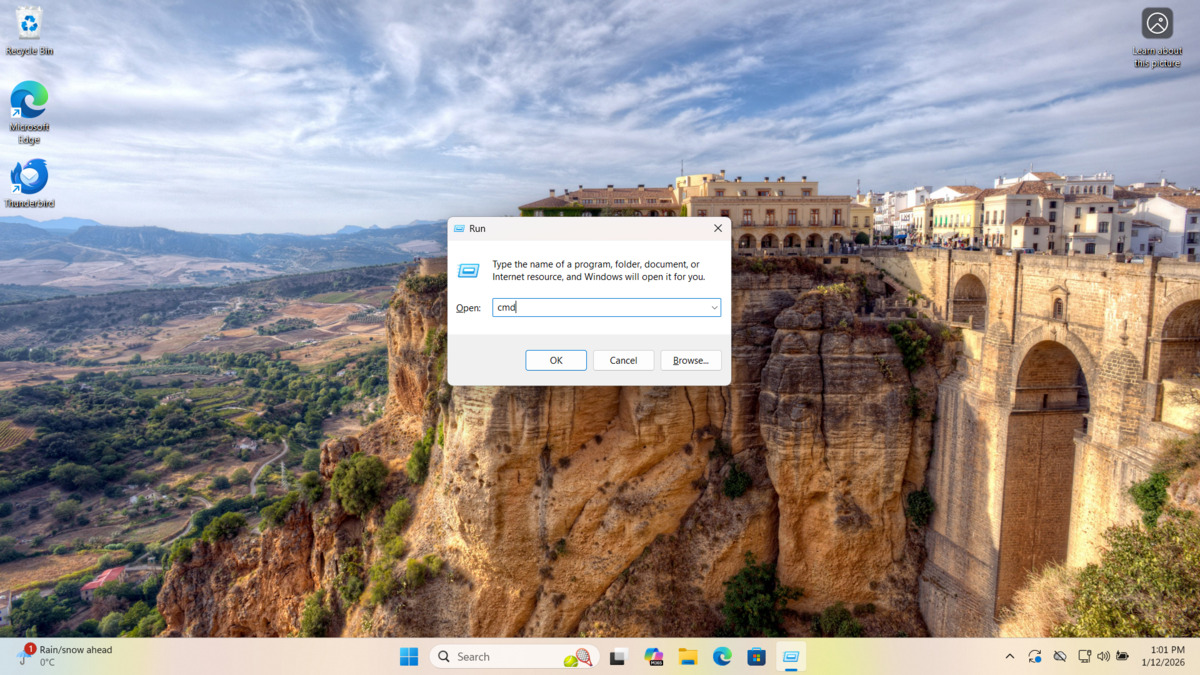
copy files). On Windows a terminal can be
opened by pressing WinKey-r and typing cmd. After
clicking OK you will see a terminal window.
To open an ssh connection you can then type the following (this should work on most operating systems, including Linux and Mac):
ssh <user>@coxeter.math.utoronto.ca
where <user> is your coxeter user name e.g.:
ssh joesmith@coxeter.math.utoronto.ca
The first time you log in using ssh will ask you to confirm one of the following fingerprints:
SHA256:Ez31GCgC5Ac3SBv1LuMRs2z7r8aGSpNJFwh8HxfiGiA.
SHA256:TWEPrdfPPJv8OwC8noX/VMDcK9Y22jh59qDNatEIpDw.
SHA256:xH9XMYRBpOLWtxWf2qz6CkIF4A2b0VwMzHU/3TASdIE.
Accept it (type yes) if it matches, otherwise type no and contact
requests@math.utoronto.ca.
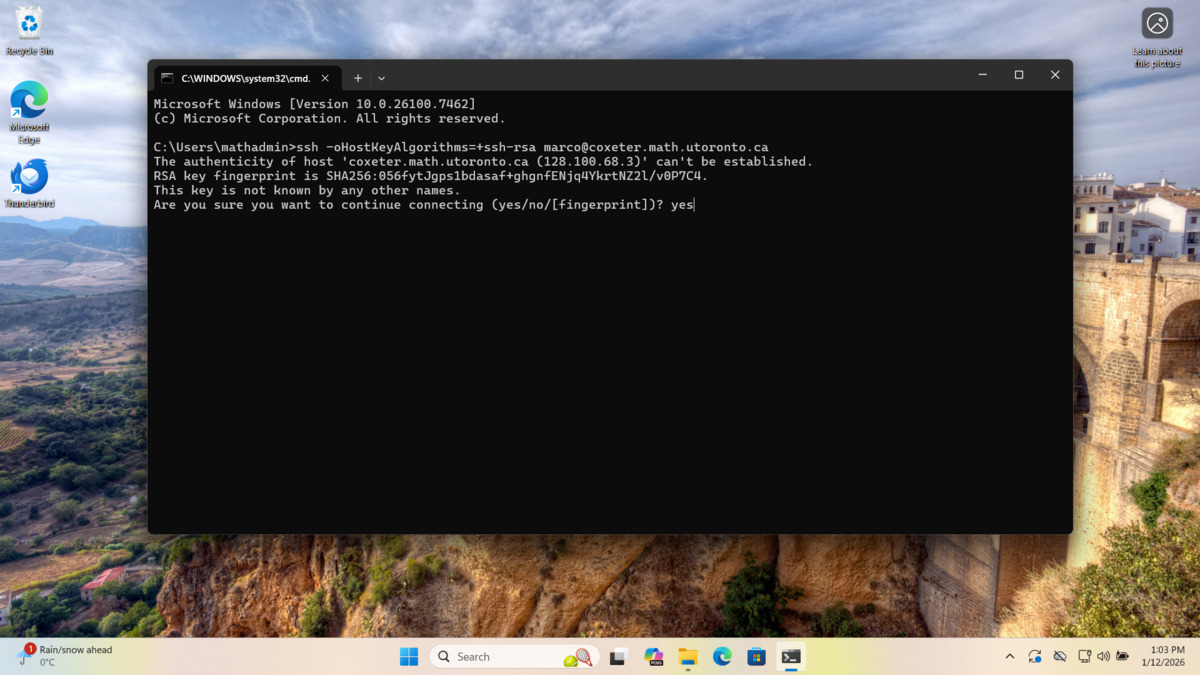
If the fingerprint matches and you accept it you will be prompted for your coxeter password. Note that ssh does not show anything at the password prompt when you type (not even ✱).
In addition to ssh you will also be able to copy files between
your computer and coxeter using the scp command. The basic usage
to download a file named data.txt from a home directory on coxeter
would be:
scp <user>@coxeter.math.utoronto.ca:/home/<user>/data.txt .
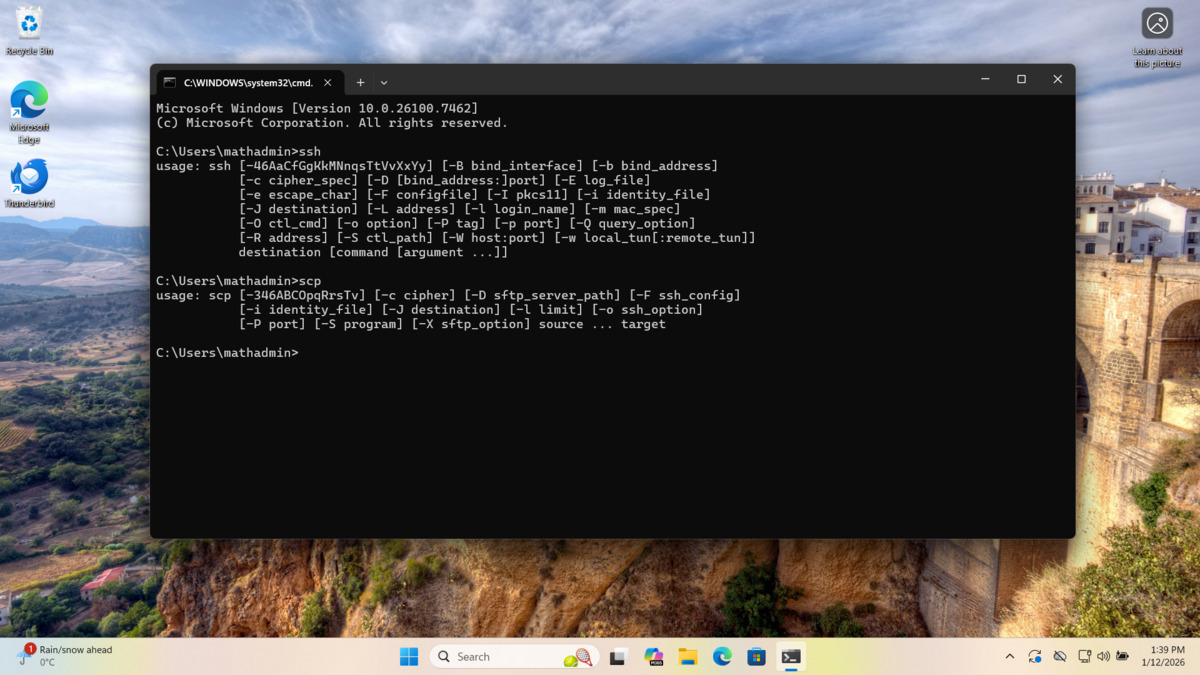
You can also type ssh and/or scp at the command line
to get more information regarding usage:
or you can access the full documentation by clicking on
ssh
and scp.
For ease of use there also exist popular graphical interfaces for scp such as
WinSCP
and FileZilla.